Links
4-Pin Aviation Jack Y Splitter to Two 4-Pin Aviation Jack: 4-pin aviation camera-signal Y-splitter reference
4-Pin Aviation Jack to RCA Power and Video: 4-pin aviation-to-RCA adapter reference
Images

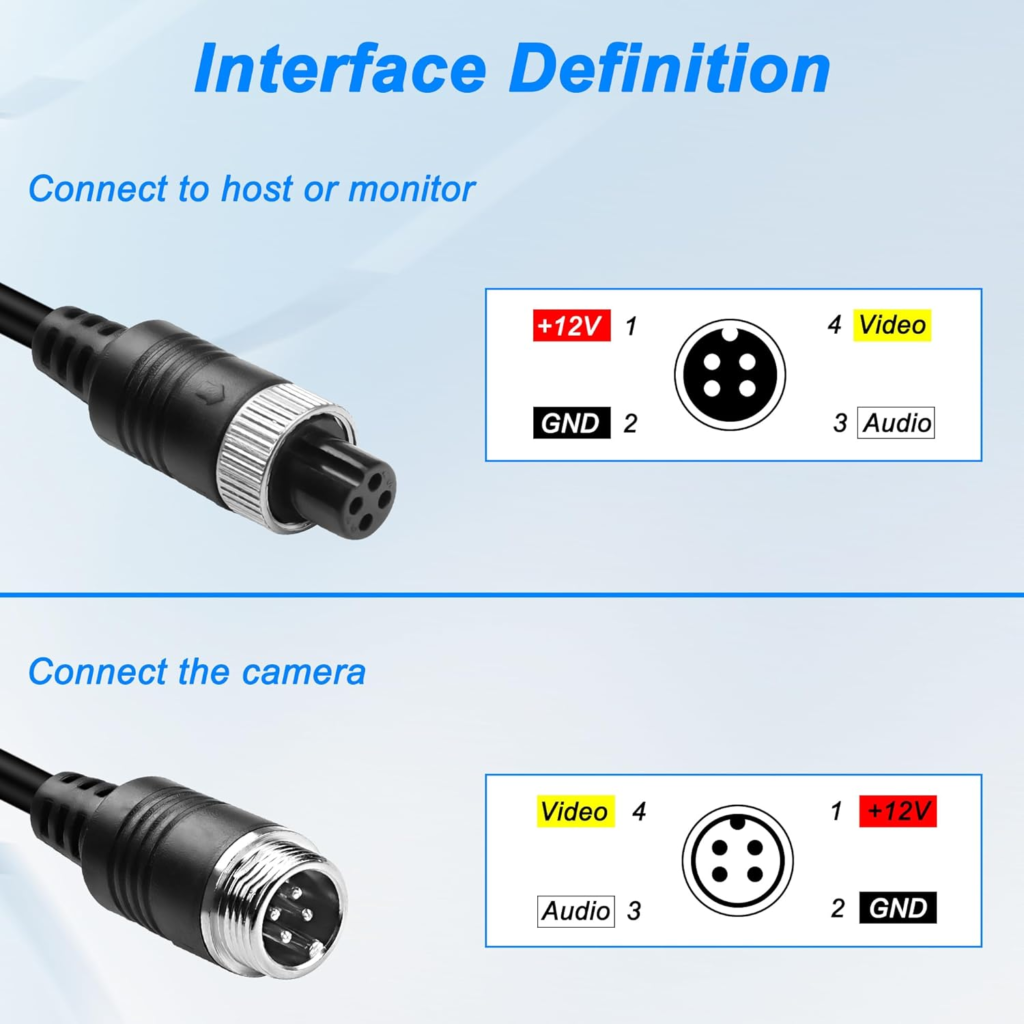
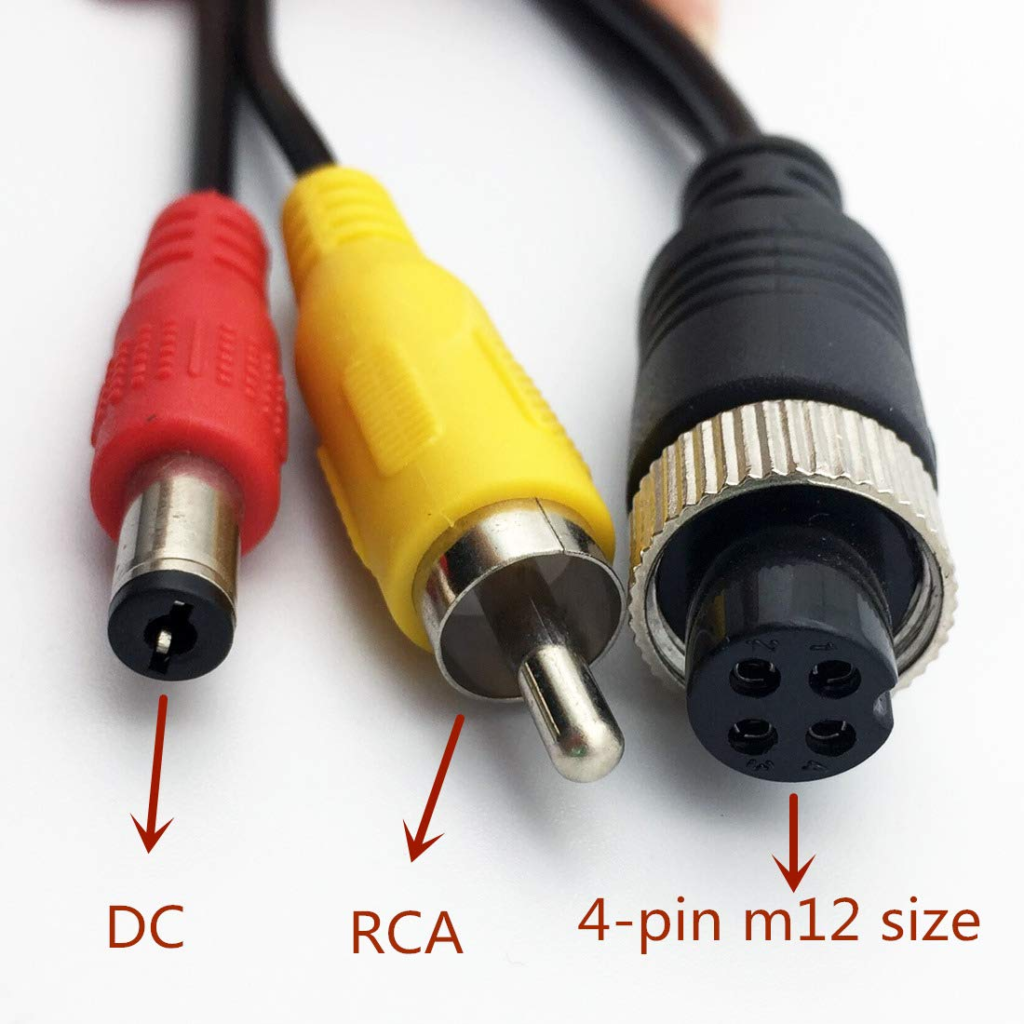
Explanation
Splitting the video feed from a camera with a 4-pin jack to send the output to both a computer/monitor and a Raspberry Pi involves understanding the pinout of the 4-pin connector and ensuring compatibility with the receiving devices. The 4-pin connector likely carries video (and possibly power or other signals), so you'll need to identify the function of each pin. Commonly, such connectors include video signal, ground, and possibly power or audio depending on the camera's features.
Step 1: Identify The 4-Pin Jack Pinout
First, determine the pinout of your camera's 4-pin connector. This information may be found in the camera's manual or manufacturer's website. Common configurations might include:
- Pin 1: Video +
- Pin 2: Ground
- Pin 3: Power +
- Pin 4: Audio or another function
Step 2: Obtain A Splitter Or Create One
If a commercial splitter is available for your camera's connector type, purchasing it would be the simplest solution. However, if a splitter is not available, you might need to create one by:
- Purchasing a 4-pin connector that matches your camera's jack.
- Soldering wires from this connector to two sets of outputs, each terminating in a connector that is compatible with your monitor/computer and Raspberry Pi.
Step 3: Adapting To Monitor/Computer And Raspberry Pi
- For the Monitor/Computer: Ensure the adapter or cable matches the input type of your monitor (e.g., HDMI, VGA, or Composite video). You may need a converter (e.g., Composite to HDMI) if the monitor input type doesn't directly match the camera's output.
- For the Raspberry Pi: The Raspberry Pi typically uses HDMI for video input. Since direct video input to the Pi's HDMI port from a camera is not standard, you'll likely need to capture the video feed through a USB capture device. This device would need to accept the video output format from your camera (e.g., Composite video) and convert it to USB. The Raspberry Pi can then access the video feed via USB, using suitable software.
Step 4: Power And Ground Considerations
- Ensure that if your camera needs power through the 4-pin connector, both paths of the split provide the necessary power connections. Be cautious of grounding properly to avoid ground loops which can introduce interference in the video signal.
Step 5: Software Configuration For Raspberry Pi
- You will need to configure the Raspberry Pi to recognize the USB capture device and access the video feed. This might involve installing drivers or software packages that can handle video capture, such as
ffmpegorgstreamer.
Precautions
- Be mindful of signal degradation when splitting video signals. The quality of the video might decrease, especially if the cable runs are long.
- Ensure that any power supplied through the split connections does not exceed the camera's requirements, as this could damage the camera.
- Always double-check connections and pinouts before powering up the system to avoid short circuits.
This project combines hardware adaptation and software configuration, with adapters or converters selected for the camera, Raspberry Pi and monitor interfaces.
Product Options
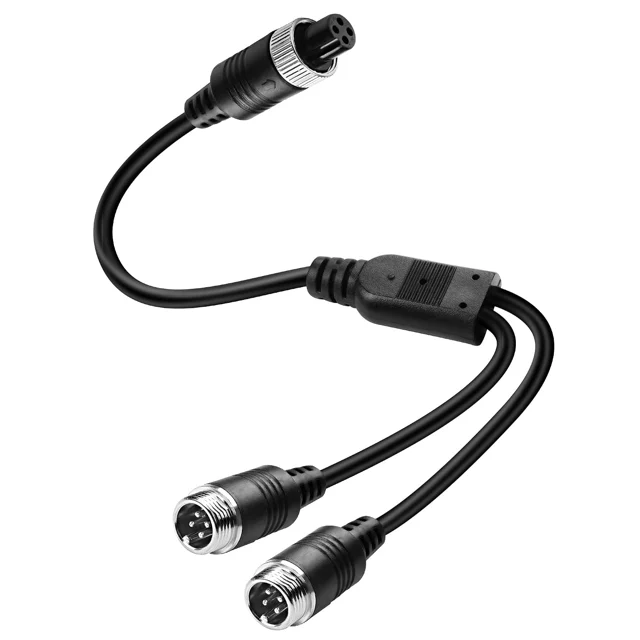
Alternative: Four-Pin Aviation Y-Splitter Cable
This cable branches a four-pin aviation connection into two connector ends. It provides a physical cable junction for a camera wiring arrangement.
View On Amazon: Alternative: Four-Pin Aviation Y-Splitter Cable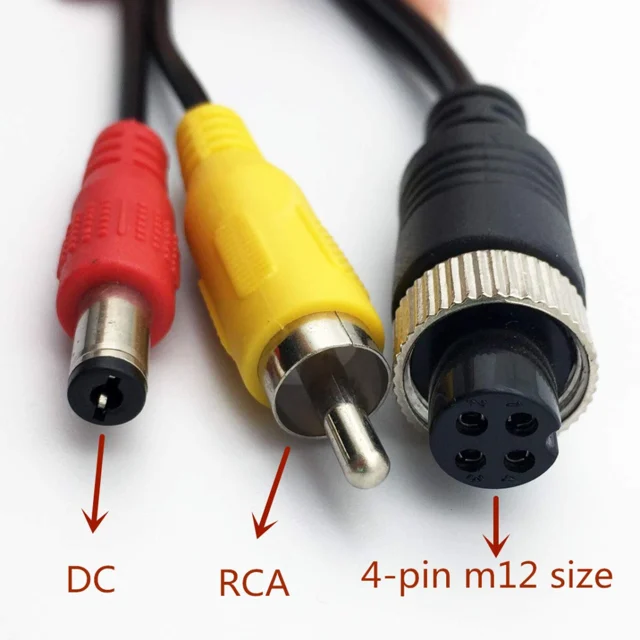
Alternative: 4-Pin Aviation To RCA And DC Adapter
This adapter cable joins a four-pin aviation connector to separate RCA video and DC power plugs. It provides a cable transition for a camera connection.
View On Amazon: Alternative: 4-Pin Aviation To RCA And DC Adapter