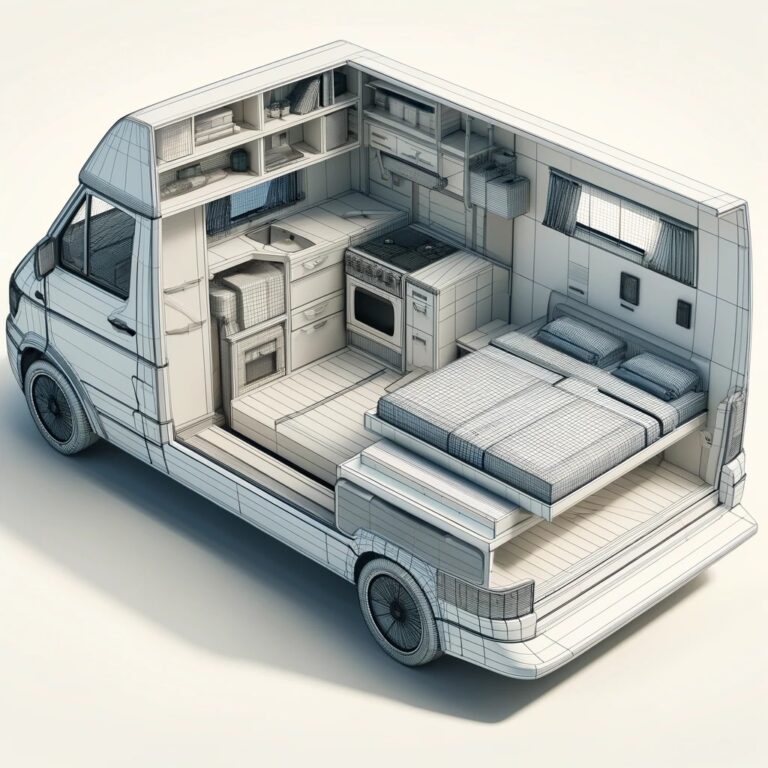
Use SketchUp to compare camper van layouts before cutting materials or buying furniture. Start with the dimensions of your actual van, build simple shapes for the main fixtures, then test whether the bed, storage and access routes work together.
Quick Answers Before Modeling Your Van Layout
What Should You Measure Before Modeling A Camper Van In SketchUp?
Start with your actual van: identify its configuration, choose one working unit and record interior widths at the floor, bed and cabinet heights. Include wheel wells, door openings and furniture dimensions. Keep planned floor, wall and ceiling build-up separate from bare-van measurements, and mark unknowns in the worksheet. Follow the measurement workflow before drawing the fixtures.
Can You Use A Downloaded Van Model Without Remeasuring?
Use a downloaded model as a starting reference, then check important dimensions against your vehicle. Review its source, configuration and built-in finishes or furniture before adapting it. Keep an unchanged starting copy and record unresolved measurements. Begin with the starting-model checks.
Use the downloaded van-model checklist to record source details, dimensions and mismatches before editing a copy.
Does A SketchUp Layout Prove Your Furniture Will Fit?
No. The model supports layout comparisons. Test key footprints with a physical mockup, check furniture in open and closed positions, and remeasure important openings before ordering or cutting. Equipment clearances and attachment requirements still come from the exact documentation. Use the same-routine layout comparison to keep model observations and unresolved physical checks distinct.
Start With SketchUp For Web
SketchUp Free runs in a browser; it is not a free desktop download. SketchUp’s current documentation describes it as a noncommercial option. Check the appropriate plan and permitted use if you are doing commercial work. Read The SketchUp Free Details.
SketchUp for Web requires a Trimble ID and internet access. Use the Official Getting-Started Guide for current account, browser and file-management instructions.
Step 1: Confirm The Exact Van
Record the model year, body length, wheelbase and roof configuration before choosing a starting model. Two vans with the same platform name can have different usable interior space. If you are still choosing a vehicle, start with the Transit, Sprinter And ProMaster Comparison.
Step 2: Measure The Usable Interior
For a focused check of obstructions and access, use the wheel wells, doors and usable-space guide before refining your furniture layout.
Measure the cargo area, wheel wells, doors and the heights where you plan to place furniture. Record the units with your measurements. Allow space for your planned floor, ceiling and wall finishes.
A downloaded model can help you begin, but check important dimensions against your vehicle before relying on it.
Record Measurements In The Layout Worksheet
Use the blank worksheet below to keep actual van measurements separate from furniture choices and layout comparisons. Choose one unit for your working model and record it with every numeric measurement. There are no preset van dimensions: measure your own vehicle and the exact equipment you plan to use.
Download The Layout Worksheet (CSV)
The CSV file can be opened in spreadsheet software. Start with the vehicle and interior measurements, then record furniture dimensions. Use the Layout A and Layout B columns for observations while comparing arrangements. Keep a separate copy for each design revision.
| Check | Where To Measure |
|---|---|
| Interior Width | At the floor and at the planned bed or cabinet height; check both sides of an irregular opening. |
| Wheel Wells And Door Openings | Record the width, height and position that affect furniture and access. |
| Finished Floor And Wall Space | Record your planned finish thicknesses separately from the bare-van measurements. |
| Bed, Drawers And Service Access | Check furniture when closed and open, and how equipment can be reached for maintenance. |
Transfer your measured values into SketchUp, then verify important distances in the model. The worksheet organizes design decisions; equipment clearances and vehicle attachment locations still come from the exact manufacturer documentation.
A Measurement Workflow Before You Model
Work from the actual vehicle rather than copying dimensions from a similar van. The blank measurement worksheet (CSV) separates bare interior measurements, planned finishes, furniture and layout checks.
- Identify The Vehicle: Record the model year, wheelbase, body length and roof configuration, then choose one working unit.
- Measure At The Right Height: Record widths at the floor, bed and cabinet heights. Note the location of each measurement so wall curvature is not lost in a single width.
- Keep Finishes Separate: Record floor, ceiling and wall build-up as planned values rather than silently changing bare-van dimensions.
- Include Moving Parts: Compare drawers, lids, doors and any bed-conversion steps in both their closed and open positions.
- Record What Is Unresolved: Mark values that still need measuring or manufacturer documentation. An unverified value should not become a cutting dimension.
Compare Layout A And Layout B
Use a separate saved model for each arrangement. Keep the same verified van geometry and furniture sizes in both, then compare entry access, daily bed use, reachable storage and equipment service access. Record the differences in the worksheet before refining textures or finishes.
Check the important footprints with a physical mockup inside the van. The model and worksheet support planning; exact equipment clearances and attachment requirements still come from the relevant vehicle and equipment documentation.
Next: choose tools for the first project, or browse the planning resources.
Step 3: Choose A Starting Model
The three Transit models below were linked in the recovered planning resources. Their public pages are available; downloading requires Trimble sign-in. Check the author’s description, file options and usage terms on each page.
| Model Page | What To Check |
|---|---|
| Ford Transit HR EXT Cargo Area | Inspect the cargo-area model as a starting point for a measured layout. |
| Ford Transit Extended High Roof Base Build | Review the author’s existing wall, ceiling and floor assumptions before adapting it. |
| Ford Transit High Roof Ext Length Schematics | Compare the model description and reference geometry with your actual van. |
Explore The Project Freedom Layout
For an example from this build, visit The Project Freedom 3D Model. That page links to the design dated March 28, 2024, and connects it with the build diary. Compare its arrangement with your needs, then check your own van dimensions rather than treating the example as a measured template for another vehicle.
Keep an unchanged copy of your starting model. Review any built-in floor thickness, paneling or furniture before using it as the base for your own design.
Step 4: Block Out The Main Fixtures
Build a simple representation of the space each major fixture occupies. Start with the bed, kitchen and largest storage units. Use planned outside dimensions, including frames and overhangs, rather than the mattress or storage-container dimensions alone. Detailed textures and finishes can wait until the layout works.
- Separate The Working Geometry: Keep the measured van shell in its own group and preserve an unchanged starting copy. Before drawing a fixture, create an empty group and open its editing context, following the Grouping Geometry Guide. This keeps the new fixture separate from the shell and other furniture.
- Draw The Footprint: Use Rectangle inside that group. Enter the planned length and width in the Measurements box, with explicit units matching the measurement worksheet (CSV). Check the resulting orientation rather than judging the size from the screen. See Drawing Basic Shapes.
- Add The Height: Use Push/Pull on the footprint face and enter the planned height while that operation is active. Follow the official Push/Pull instructions. A simple box is enough for the first comparison.
- Close And Identify The Group: Leave its editing context before selecting the complete fixture. Give it a recognizable name, such as “Bed Blockout,” and move the grouped fixture into position.
- Check Before Repeating: Compare the fixture's size and location with the worksheet, then create the next fixture in a separate group. Use the Tape Measure tool in Measure mode for a check. Typing a new value after a Tape Measure measurement can offer to resize the model; do not accept a resize simply to make a layout fit.
A rectangular block is a planning envelope. It does not reproduce curved vehicle panels or prove that a finished cabinet will fit. Keep wheel wells and other obstructions visible. Compare arrangements, access to doors and the space needed by drawers, lids and other moving parts when open. The wheel wells, doors and usable-space guide covers those vehicle checks.
Model The Space Taken By Finishes
Keep bare-van measurements and planned finishes as separate information. Before adding a floor or lining allowance, inspect the starting model: it may already include those layers. Count each layer once.
Represent the planned floor, wall and ceiling build-up with separate, named groups. For an initial check, a simple layer envelope can show the space reserved by the complete assembly; label it as planned rather than as an installed result. Use the total build-up from your chosen assembly, not just the visible panel thickness.
- Floor: Position the furniture relative to the intended finished floor. A floor layer raises that reference surface and reduces the height available above it.
- Walls: Check passage widths between finished wall surfaces and the furniture. Record each side separately and recheck at the actual bed or cabinet height.
- Ceiling: Check the finished floor-to-ceiling distance at the relevant location, including local obstructions.
As a simple check between parallel reference surfaces at the same location, finished width is bare width minus the left-side and right-side build-up. Finished height is bare height minus floor and ceiling build-up. Curved or sloping surfaces need checks at the actual locations; one subtraction does not describe the whole van.
Record layers, units and choices in the worksheet. Keep finish allowances separate from the measured vehicle geometry and count each allowance once.
Step 5: Keep Furniture Separate
Make the bed, cabinets and other fixtures separate groups or components so their geometry stays independent. A group suits a fixture you want to move and edit on its own. Double-click the group to edit its contents, then leave that context before working on another object. The Grouping Geometry Guide explains the editing boundary.
Use a component when repeated objects should share a design. For example, identical cabinet modules can be instances of one component. Editing geometry inside their shared component definition updates the other instances. Moving one complete instance to another position is different from changing that shared geometry. See Editing Components.
If one module needs a different shape, select that instance and choose Make Unique before opening it to edit. This creates a separate definition for that module. Follow Changing A Single Component Instance rather than assuming a copied component is independent.
Use tags to control the visibility of those objects as the model becomes busier. Keep raw edges and faces Untagged; assign visibility tags to groups or components instead. Tags control visibility and do not replace grouping. See Controlling Visibility With Tags.
Before refining the design, select each fixture independently and check that it can move without changing the van shell. Inspect repeated components after an edit, restore the finish layers' visibility, and continue to the access-and-clearance checks.
Step 6: Check Access And Clearances
Look at the layout from above and from the doors. Check the bed, standing space and access to storage. Include space for maintenance where equipment needs to be reached.
Use the instructions for the exact equipment when allowing installation clearances.
Record Service Access As A Separate Check
For each component you plan to enclose, identify the routine task and the complete replacement route separately. A model opening may show the equipment without showing the working space or the route needed to remove it. Keep these questions alongside the furniture footprints instead of treating an open cabinet door as a complete access check.
Use the maintenance-access planning guide with its blank access worksheet (CSV). Compare the proposed openings during the physical mockup, and record the model revision and evidence for the task you checked.
If a drawer, panel or neighboring fixture needs to move, put the proposal in the van-build decision log before changing the related cut list or order. Keep the observation from a model separate from a check in the actual van.
Step 7: Save And Test The Layout
Save dated versions when comparing alternatives. SketchUp for Web supports importing SketchUp model files, while other import and export options depend on the plan. Check the Current File-Management Guide before choosing a file workflow.
Keep A Recoverable Layout Revision
Use a named working copy for a deliberate layout alternative, and keep a short record of why you created it. A history entry can help recover earlier work, but its timestamp alone does not explain which arrangement or measurement assumptions you intended to compare.
SketchUp For Web: History And Named Copies
The official SketchUp For Web Saving Models guide explains that models save to Trimble Connect, with new versions created by manual saves and auto-saves. It recommends saving manually before closing. Check the save status in the menu bar rather than assuming that closing the browser confirms a completed save.
- Record A Comparison Checkpoint: Before changing an arrangement, identify the current named model and the corresponding worksheet revision. In Source Or Revision Notes, record the intended change, the assumptions being kept and the checks you will repeat. A note such as “Try a different kitchen position. recheck entry access” describes an intention.
- Keep An Alternative Separate: Use the documented Save As workflow with a distinct name when you need a separate working file. Check the destination and name before confirming: Save As can also overwrite another file. Keep Layout A and Layout B identifiable throughout the same-routine comparison.
- Inspect History Before Restoring: In SketchUp for Web's Home tab or Trimble Connect, use the model's file-options menu and choose History. Open the older version you want to inspect. The guide distinguishes restoring it as the current version from saving it as a copy; choose a copy when the purpose is a separate comparison, and confirm the file you are about to save.
If A Browser Backup Is Recovered: SketchUp documents recovered browser-cache backups as new models that are not associated with the original Trimble Connect file. Check the recovered model and its destination before saving it. Do not assume it has already replaced or updated your intended working file.
Keep the model name, revision note and measurement worksheet (CSV) together. After reopening a saved working copy, check the arrangement against that record before continuing. These instructions describe SketchUp for Web.
Compare Layouts With The Same Routine
Choose the question before comparing the drawings. You might be deciding which arrangement makes daily bed use easier while keeping frequently used storage reachable. Write down which needs are essential to you and which are preferences. A more attractive drawing does not resolve an unanswered fit or access question.
- Name The Two Working Files: Identify Layout A and Layout B with their dates or revision labels, and put those labels in the worksheet's Source Or Revision Notes. Keep the same verified vehicle, finish assumptions and furniture dimensions in both. Follow the official Saving Models Instructions for your file workflow, and check which named file you are editing before changing an arrangement.
- Replay One Daily Routine: In each arrangement, follow the same sequence: enter through the intended door, reach a frequently used stored item, prepare the bed and return the space to its daytime use. Examine the same stages and viewing directions in both files. Include the furniture's open positions rather than comparing one layout closed with the other open.
- Record An Observation For Each Row: In the worksheet's Compare Layouts section, use both notes columns for Movement Through The Van, Drawers, Lids And Doors Open, Entry And Exit Access, Equipment Service Access, Bed Use And Conversion and Usable Storage. Write what changed and identify the supporting measurement or model revision. The moving-furniture checks help define what to inspect.
- Keep Unknowns Visible: Label an observation as supported by a model check, showing a conflict, or not yet verified. State the reason beside it. An inaccessible area that you have not inspected is not a successful check. A model observation also remains separate from a check in the actual van.
Record A Provisional Layout Choice
Review essential needs before comparing preferences. If an arrangement conflicts with an essential requirement, identify the change or further evidence needed before choosing it. Do not let several convenient storage details cancel out an unresolved essential-access question in a single overall score.
For a hypothetical comparison, one arrangement might reduce the furniture movements needed to prepare the bed, while another keeps a particular storage opening easier to reach. Record those different effects rather than declaring either arrangement best for every builder. If the result depends on a dimension still being checked, keep the choice provisional.
In Remaining Decisions, record the preferred arrangement, the reason, the unresolved check and the next action. The layout decision record explains how to carry that choice into the project plan without treating a drawing revision as permission to order parts.
Keep the comparison with its dated model files and measurement worksheet (CSV). If a finish assumption, component size or required use changes, identify which observations need checking again. Equipment installation requirements and required service clearances still come from the exact equipment documentation.
Test the main furniture footprints in the van with a simple physical mockup before building. Recheck important measurements and openings before ordering materials or cutting panels.
Tools And Materials Used
See The Tape Measure In Step 2.
Turn The Layout Into A Build Plan
Once the layout works, identify the projects and equipment it requires. The build journals include project notes, photographs and the tools and materials listed for individual jobs.
Follow The Van Build Browse Build Resources

Planning workflow updated October 21, 2026. Original publication date and model references retained.